


Quick Answer: A Shopify store that suddenly becomes slow often follows a recent change such as a newly installed app, theme modification, large media upload, or added tracking script. Confirm the slowdown first, then review recent apps, uploads, tracking changes, and theme edits to isolate the likely cause.
Your Shopify store was running fine last week. Now pages crawl, checkout lags, and customers are bouncing. If you are asking why is my Shopify store suddenly slow, the cause is almost always something that changed recently rather than a mystery platform-wide issue.
A sudden performance drop can affect both user experience and conversions, particularly on mobile devices. More importantly, the timing of the slowdown often gives you the strongest clue about its cause. This guide walks through how to confirm the problem, check what changed, and isolate the responsible cause, then points you to the right place for a full fix.
Table of Contents
Why My Shopify Store Suddenly Slow?
A sudden slowdown almost always follows a recent change to your store. The usual suspects include:
- A newly installed or updated app
- A theme edit or new section added to a page
- Large, uncompressed images or a new video added recently
- A new tracking pixel, chat widget, or marketing script
- A third-party service or integration change
The keyword is “suddenly.” If your store has always been slow, the cause is more likely a heavy theme or accumulated app bloat over time, a separate issue best solved with a full optimization pass. If it changed overnight, start by reviewing what you installed, updated, or uploaded in the last one to two weeks.

Bring your ideas to life for $1/month
The future of business is yours to shape. Sign up for a free trial and enjoy 3 months of Shopify for $1/month on select plans.
How to Troubleshoot a Shopify Store That Suddenly Became Slow
Step 1: Confirm It’s Really a Store-Wide Problem

Before diagnosing anything, verify the problem exists outside your own browser and device.
- Clear your browser cache and cookies, then reload the store.
- Test from a different device, browser, and network (mobile data vs. Wi-Fi).
- Ask someone in a different location to load the store and compare results.
- Run an objective speed test to get real Core Web Vitals numbers. Shopibuffet’s guide on what makes a good Shopify speed score explains what these numbers actually mean for your store.
If the store loads slowly for everyone, everywhere, you have a genuine performance issue worth investigating. If it’s only slow for you, the problem is local: check your internet connection, browser extensions, or device for malware.
Step 2: Check What Changed Recently
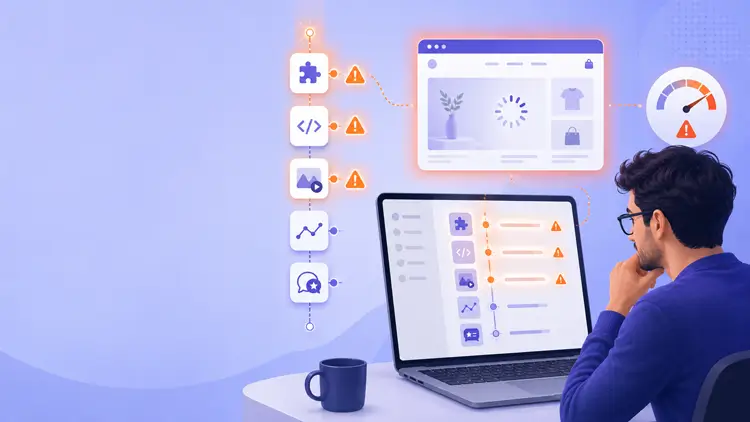
Once confirmed, look at your store’s recent history before diving into technical audits.
2.1 Recently installed or updated apps
Open Settings, then Apps and sales channels, and note the install or update dates. Many storefront-facing apps load JavaScript, CSS, app blocks, or external requests that can affect performance. Not every app touches the storefront, though; some work entirely through the admin, backend APIs, fulfillment, or reporting, so focus your review on apps that visibly render something on your live pages.
If you’re unsure which apps your store actually needs, see how to pick the right Shopify app stack and the list of essential Shopify apps to supercharge your store for guidance on auditing your current stack.
Older app integrations, or apps that modified theme files, may leave residual snippets or assets behind after removal. Review recent app changes together with your theme files, not app history alone.

2.2 Theme edits
If you or a developer edited theme.liquid or added a new section recently, that’s a common source of sudden slowdowns. Extra homepage sliders, embedded videos, or new animation effects can all add load time.
2.3 New media uploads
A newly uploaded oversized image, animated GIF, or autoplay video can significantly increase page weight and delay rendering. Check recently added banners or product media and compare their file size with older assets that were already loading fine.
2.4 New tracking scripts or third-party integrations
New analytics, ad-tracking, review, personalization, or live-chat integrations can add extra network requests and JavaScript work to your storefront. If the slowdown started shortly after adding one of these tools, test that integration early in your investigation.
Review your analytics and pixel setup next. Compare your current implementation with the recommended setup in setting up Google Analytics 4 on your Shopify store and adding a Facebook pixel to Shopify. This can help you spot duplicate tags, overlapping event tracking, or scripts that were added manually.
For stores using a tag manager, adding Google Tag Manager to Shopify can help you review and consolidate tracking scripts instead of stacking multiple separate tags.
Step 3: Use a Waterfall Test to Find the Bottleneck
Use a browser’s network inspection tool or a third-party speed testing tool to generate a waterfall chart, a breakdown of every file your store loads and how long each one takes. This is the most useful diagnostic step because it shows you which resource is actually responsible, rather than guessing.
When reviewing the waterfall, look for:
- Resources that appear to have been added around the time the slowdown started
- Third-party domains you don’t recognize or didn’t expect
- Unusually large transferred file sizes relative to similar assets
- Scripts with unusually long download or execution times, particularly render-blocking third-party resources
- Failed or unusually slow network requests
- Resources that block the page from rendering content
Common Causes of Sudden Shopify Slowdowns
| Cause | How It Slows the Store | What to Check First |
|---|---|---|
| Recently added storefront app | May add scripts, CSS, or external requests to every page | Disable or test the recently added app in isolation |
| Large media upload | Increases transferred bytes and delays rendering | Inspect recently added images and videos for file size |
| Tracking scripts | Adds network requests and JavaScript execution | Review recently installed pixels or tags |
| Theme modification | Can introduce blocking assets or inefficient code | Compare recent theme edits against a backup version |
| Third-party service or API latency | External services such as reviews, search, personalization, or fonts can delay or fail | Inspect external requests in a waterfall test |
Step -4: Test and Isolate the Responsible Change
Follow this order to avoid wasting time on the wrong fix first.
- Verify: Confirm the slowdown with a real speed test, not just a gut feeling.
- Isolate: Check your app list, theme edit history, and recent uploads for what changed.
- Test: Temporarily disable one suspect app, or revert one recent theme change, then re-test speed.
- Correct: Remove, replace, or reconfigure whatever is confirmed as the cause.
- Retest: Confirm the change resolved the slowdown, then set a recurring check going forward.
Once you’ve identified the bottleneck, see the full Shopify page speed optimization guide for detailed instructions on improving images, scripts, app loading, and Core Web Vitals.
Hypothetical Troubleshooting Example
Imagine a growing store installs an upsell app and a review widget during the same week. Product pages become noticeably slower shortly after. A waterfall test reveals that both apps are loading scripts across multiple templates, including pages where neither app’s features are actually used.
The store owner disables each app one at a time to isolate the cause, finds that one app’s script is render-blocking, and either asks the developer to load it conditionally or replaces it with a lighter alternative.
This pattern, installing two apps close together and struggling to tell which one caused the slowdown, is one of the most common reasons Shopify merchants search for why their store suddenly got slow. Isolating changes one at a time is what actually solves it, not guessing.
What If Nothing on Your Store Changed?
If you haven’t installed anything, edited your theme, or uploaded new media, the cause may not be on your end. Shopify occasionally experiences platform-wide incidents. Check Shopify’s status page and community forums before making changes to your theme or apps. If other merchants are reporting the same issue at the same time, the problem is likely temporary and outside your control.
If your store is slow but still isn’t converting well even after fixing performance, it may be worth reviewing the broader reasons a Shopify store stops making sales, since speed is only one factor among several.
How to Prevent the Same Problem From Returning
- Document app installs and theme edits so you can trace changes back later.
- Test performance after any major storefront modification, not just periodically.
- Periodically review storefront-facing integrations and remove ones no longer in active use.
- Keep a duplicate or backup theme before making significant edits.
For comprehensive, ongoing performance improvements, image optimization, lazy loading, Core Web Vitals, and app management, see the Shopify page speed optimization guide.
Frequently Asked Questions
Why did my Shopify store suddenly become slow?
Recent app installs, theme edits, tracking scripts, media uploads, or third-party integration changes are the most common places to investigate first.
Can a Shopify app suddenly slow down my store?
Yes. Storefront-facing apps can add scripts, styles, or network requests. If the slowdown began after installing or updating an app, test it as one of your first suspects.
How can I tell which Shopify app is slowing my store?
Compare recent app changes against your timeline, then use a waterfall test to identify which resource is responsible. Test suspected apps one at a time.
Why is my Shopify store slow only on mobile?
Mobile devices and slower networks expose JavaScript, media, and layout issues more easily than desktop devices, so problems that are minor on desktop can become noticeable on mobile.
Can Shopify itself be temporarily slow?
Yes. Platform-wide incidents can happen occasionally. If you haven’t changed anything on your store and the issue appears widely reported by other merchants, check Shopify’s status page before modifying your theme or apps
Conclusion
A Shopify store rarely slows down for no reason. In nearly every case, the cause traces back to something installed, uploaded, or edited recently: a new app, an oversized image, a theme edit, or an added tracking script.
Confirm the slowdown with real data, check what changed, isolate the responsible resource with a waterfall test, and correct it directly. Once the immediate cause is fixed, a full optimization pass can help prevent the next one.