

Selling digital products is a practical way to offer ebooks, templates, music, artwork, software, courses, and other downloadable resources without managing physical inventory or shipping. However, creating the product listing is only one part of the process. You must also configure digital delivery, customer access, fulfillment, and testing before accepting real orders.
This guide explains how to add a digital product to Shopify, connect a delivery solution, attach a file or access link, and verify the complete customer experience.
Quick Answer: To add a digital product to Shopify, create a product listing, turn off the physical-product setting, connect a digital-delivery app, and attach the file or access link customers should receive. Configure automatic or manual delivery, set any access limits, and place a test order to confirm that the correct content reaches the buyer.
The basic process is:
- Create the product listing.
- Disable shipping for the product.
- Install a digital-delivery app.
- Upload a file or add an access link.
- Configure fulfillment and customer access.
- Optimize the product page.
- Place a test order.
What You Need Before You Start
Prepare the product and delivery details before creating the listing. Having everything ready will make setup faster and reduce the chance of sending customers an incomplete or incorrect file.
You will need:
- A final version of the digital product.
- A clear product title.
- A detailed product description.
- A price and pricing strategy.
- A product cover, preview image, or mockup.
- A delivery method, such as a file download or private access link.
- Customer instructions for opening or using the product.
- A refund, usage, or licensing policy when applicable.
Check the final file before uploading it. Confirm that it opens correctly, contains the intended content, and does not include editable source material or private information unless those items are part of the purchase.
If the product contains several files, organize them into clearly named folders. You can also package related files in a single ZIP archive to make delivery easier for customers.
Examples of Digital Products
Shopify can be used to sell many types of downloadable products, online resources, and services. Common examples include:
- Ebooks and digital guides.
- Printable planners, worksheets, and checklists.
- Graphic templates and design assets.
- Stock photos, illustrations, music, and videos.
- Software, plugins, and license keys.
- Online courses and recorded workshops.
- Membership content and private communities.
- Presets, fonts, icons, and digital artwork.
- Website templates and code resources.
- Coaching sessions and professional services.
Some products are delivered as downloadable files, while others require an access link, account invitation, booking page, or manual follow-up. Choose the delivery method that best matches what the customer is buying.

Setting Up Your Digital Product in Shopify
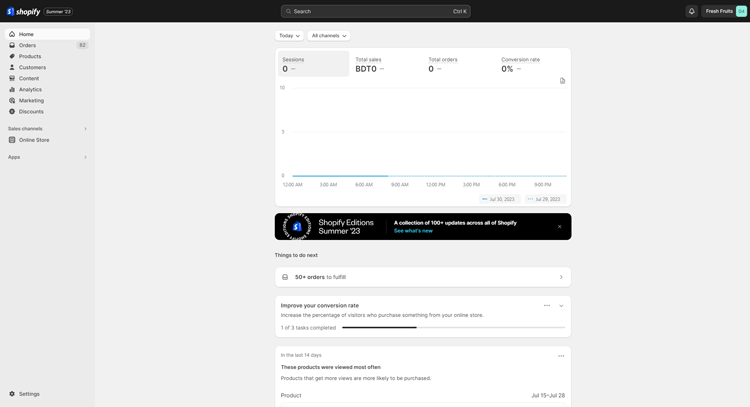
Setting up your digital products in Shopify for sales is straightforward and allows you to offer and distribute them efficiently. Follow these steps on how to add a digital product to Shopify to get started:
Step 1: Create Your Product
Start by creating the product listing in your store admin.
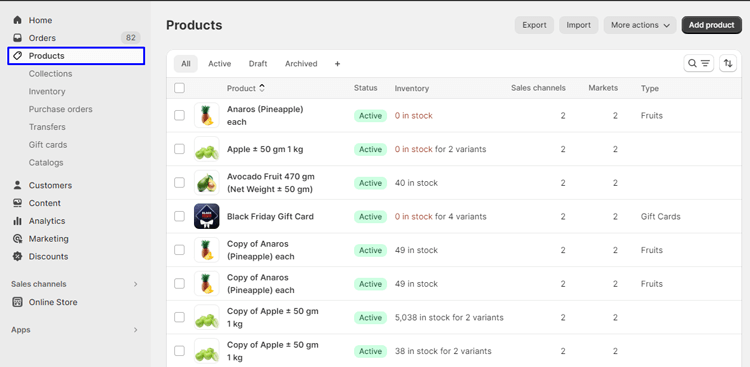
- Log in to your Shopify admin, open Products, and select Add product.
- Add the product title, description, media, and price.
- Configure optional details such as the SKU, product status, and sales channels.
- Save the product.
Your title should clearly describe the item. Avoid vague names that make customers guess what they will receive.
The description should explain:
- What the product contains.
- Who the product is for.
- What problem it helps solve.
- Which file formats or access methods are included.
- Whether special software is required.
- How and when the customer receives access.
- Whether updates or support are included.
- Any personal-use or commercial-use restrictions.
Do not upload the complete product as a publicly visible product image or preview. Use a cover image, mockup, watermarked sample, short excerpt, or demonstration instead.
Step 2: Disable Shipping
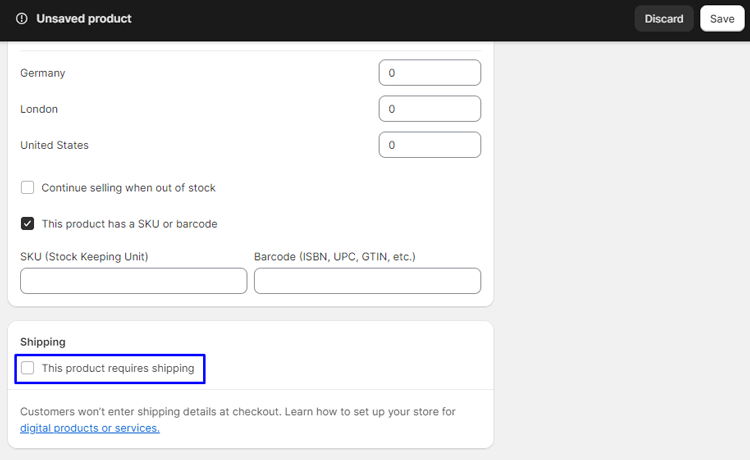
A digital product does not need physical delivery, so its shipping setting should be turned off. If you leave the product marked as physical, customers might see unnecessary shipping fields or charges during checkout.

To disable shipping:
- Open the digital product in your Shopify admin.
- Find the Shipping section.
- Turn off the Physical product setting.
- Save your changes.
If the product has variants, check the setting for each relevant variant. A missed variant can cause shipping to appear for one option even when the others work correctly.
After saving, preview the product and test the checkout flow. Confirm that the digital-only order does not ask the customer to select a shipping rate.
Step 3: Install a Digital-Delivery App
A product listing alone does not automatically send a file or access link after purchase. You need a digital-delivery app or another reliable fulfillment system to connect the purchased product with its digital content.
A suitable app should support the delivery method you need. Depending on your product, useful features may include:
- Automatic delivery after payment.
- Manual delivery for reviewed orders.
- Multiple files or links per product.
- Download or access limits.
- Customer email customization.
- Download access at checkout.
- File updates for previous customers.
- License keys, streaming, memberships, or course access.
- Order and download tracking.
Install the app and review its settings before attaching any files. Pay particular attention to fulfillment behavior, email templates, access limits, and the point at which customers receive their content.
Using Shopify Digital Products
Shopify provides an official app called Digital Products. It is suitable for straightforward products that customers receive as files, supported access links, or a combination of both.
With the app, you can attach digital assets to products, choose automatic or manual delivery, control customer access limits, and manage digital orders. It is a practical starting point for ebooks, videos, songs, graphics, templates, and private content links.
A third-party app may be more appropriate if your business requires advanced licensing, subscriptions, streaming protection, customer accounts, detailed analytics, large-file delivery, or specialized course features. Compare app capabilities before building your workflow around one solution.
Step 4: Upload and Attach Your Digital File
After installing your delivery app, connect the correct digital asset to the product. Depending on the app, you may be able to upload files, add access links, or use both.
To attach the digital content:
- Open the digital-delivery app.
- Select the product you created.
- Choose the option to add a file or link.
- Upload the final file or enter the access link.
- Add customer instructions if the app supports them.
- Review the attached asset.
- Save the changes.
Use descriptive file names that customers can recognize after downloading. A name such as weekly-planner-a4.pdf is more useful than final-version-3.pdf.
Before saving, check that you attached the correct version. If your product has multiple variants, such as different languages or software formats, verify that each variant delivers the matching file.
When using an access link, confirm that the customer has permission to open the destination. Avoid links that expose private folders, expire unexpectedly, or require an account that customers do not know how to create.
Step 5: Configure Fulfillment and Customer Delivery
Digital products can usually be delivered automatically or manually. The right choice depends on the product, payment risk, personalization requirements, and your support process.
Automatic Delivery
Automatic delivery sends the file or link after the order meets the app’s fulfillment conditions. This is usually the best option for standard products that are ready for immediate access.
Automatic delivery works well for:
- Ebooks.
- Templates.
- Printable files.
- Stock media.
- Presets.
- Pre-recorded lessons.
Manual Delivery
Manual delivery lets you review the order before releasing the content. It can be useful when the product requires customization, approval, identity verification, or another step before access is granted.
Manual delivery may suit:
- Personalized files.
- Custom design work.
- High-value digital products.
- Manually created license keys.
- Services that require scheduling.
- Orders that need a fraud review.
Access Limits
Some delivery apps allow unlimited access, while others let you set a maximum number of downloads or link visits. Unlimited access is convenient, but a reasonable limit may reduce casual sharing.
If you apply a limit, state it clearly on the product page or in the delivery email. Customers should know what they are purchasing before checkout.
Customer Emails
Review the email that contains the download or access information. It should include:
- The product name.
- A clear download or access button.
- Basic instructions.
- Any download limit.
- File format or software requirements.
- A support contact method.
Make the message easy to recognize. Avoid vague subject lines that could cause customers to overlook the delivery email or mistake it for spam.
Step 6: Optimize Your Product Page
A well-configured delivery system will not help if shoppers cannot understand the product. Your product page should reduce uncertainty and explain exactly what the buyer receives.
Use a Clear Title
Choose a title that describes the product and its main purpose. Add the format or intended audience when that information helps customers make a decision.
Write a Useful Description
Focus on outcomes as well as features. Explain how the product helps the customer, but do not make claims the product cannot support.
Include practical details such as:
- Number of files, pages, lessons, or templates.
- File types and dimensions.
- Compatible software or devices.
- Download or access instructions.
- Personal or commercial usage rights.
- Update and support terms.
- Refund conditions.
Add Product Previews
Use high-quality cover images, mockups, sample pages, screenshots, or a short preview video. Show enough to help customers evaluate the product without exposing the complete paid content.
If you want to add a demonstration, use the related guide on how to add video to a Shopify product page as your internal-link destination.
Explain Digital Delivery
Tell customers that the item is digital and that no physical product will be shipped. Explain whether access arrives by email, appears after checkout, or requires a separate account.
Set Expectations
State any important limitations before purchase. These may include required software, non-editable files, access periods, download limits, regional restrictions, or license terms.
For an ebook-specific workflow, use the guide on how to sell ebooks on Shopify as an internal-link destination. You can also connect readers to your Shopify store setup guide and product customization guide where those topics naturally support the instructions.
Step 7: Place a Test Order
Never assume the digital-delivery workflow is working correctly. Place a test order before publishing or promoting the product.
Test the purchase as if you were a customer:
- Enable an appropriate test-payment method or create a controlled test product.
- Visit the storefront in a private browser window.
- Open the digital product page.
- Add the product to the cart.
- Complete checkout.
- Confirm that no unnecessary shipping charge appears.
- Check the order confirmation page.
- Check the delivery email.
- Open the download or access link.
- Download and inspect every file.
- Confirm that the order and fulfillment status appear correctly in the admin.
Also test the process on a mobile device. Confirm that the email, buttons, download page, and files are usable on a smaller screen.
Repeat the test after changing the product file, app settings, email template, checkout configuration, theme, or payment setup. A small configuration change can affect the customer experience.
For a broader testing workflow, use your guide on how to test a Shopify store as an internal-link destination.
Common Problems and Fixes
Shipping Appears at Checkout
Possible cause: The product or one of its variants is still marked as physical.
Fix: Open the product, review the shipping setting for every variant, deactivate the physical-product option, and save the changes. Then run another checkout test.
The Customer Did Not Receive the Download Email
Possible causes: The order has not met the fulfillment condition, the email address is incorrect, the message went to spam, or the delivery app is not configured properly.
Fix: Check the order and fulfillment status, confirm the customer’s email address, review the delivery app’s order log, and resend access when appropriate. Test the email template with an address you control.
The Wrong File Was Delivered
Possible cause: The incorrect asset was attached to the product or variant.
Fix: Open the product in the delivery app, compare each variant with its attached asset, replace the incorrect file, and test the purchase again. Notify affected customers and provide the correct version.
The Download Link Does Not Work
Possible causes: The link has expired, the access limit was reached, the file was removed, or the destination requires permission.
Fix: Review the app’s access settings, confirm that the asset still exists, test the link in a private browser window, and issue new access when justified.
The File Will Not Open
Possible causes: The upload is incomplete, the file is corrupted, or the customer does not have compatible software.
Fix: Download the stored file yourself and open it on common devices. Re-export and upload a clean copy if necessary. Add software and format requirements to the product page and delivery instructions.
Customers Are Confused About What They Purchased
Possible cause: The product page does not clearly explain the format, contents, license, or delivery method.
Fix: Update the title, description, preview images, and digital-delivery notice. State exactly what is included and what is not included.
Mixed Orders Cause Fulfillment Confusion
Possible cause: The same order contains physical and digital products, but each item follows a different fulfillment process.
Fix: Test a mixed cart and confirm that the digital content is delivered correctly while the physical item remains available for normal shipping fulfillment.
Digital Product Checklist
Before launch, confirm that:
- The final file is backed up, scanned, and tested.
- File names are clear and consistent.
- Large files are compressed without reducing usability.
- File formats and software requirements are stated.
- Delivery timing and access instructions are clear.
- License and usage terms are included where needed.
- Customer information and private links are protected.
- Every product and variant delivers the correct content.
- Support instructions are easy to find.
- Outdated files have been replaced.
If you update a file after customers have purchased it, decide whether previous buyers should receive the new version. Communicate the update clearly and verify that the replacement file does not break existing access.
Video Presentation:
Frequently Asked Questions
Can I Sell Digital Products on Shopify?
Yes. You can create listings for downloadable files, access links, online resources, and services. You must deactivate physical shipping and connect an appropriate delivery method for products that customers receive digitally.
Does Shopify Automatically Send Digital Files?
Creating a product listing does not automatically attach or deliver a file. You need the official digital-product app, a suitable third-party app, or another fulfillment workflow that sends the purchased content to the customer.
What Is Shopify Digital Products?
Digital Products is Shopify’s official app for attaching digital files or supported access links to products and delivering them after purchase. Merchants that need specialized features such as advanced licensing, subscriptions, streaming protection, or course management can consider third-party alternatives.
Do Digital Products Need Shipping?
No physical shipping is required. Turn off the physical-product setting so customers are not charged shipping for a digital-only purchase.
Can Customers Download a Product Immediately After Purchase?
Yes, if your app and fulfillment settings are configured for automatic delivery. Depending on the setup, access may be provided by email, on the order confirmation page, or through a customer account.
Can I Deliver a Link Instead of a File?
Yes. A link can provide access to a course, booking page, private document, membership area, cloud-hosted resource, or another online destination. Confirm that the customer has permission to open it and that the link will remain available for the promised access period.
Can I Attach More Than One File?
Many delivery solutions support multiple files or a combination of files and links. You can also organize several files in a ZIP archive when that creates a simpler experience.
Can I Sell Ebooks on Shopify?
Yes. Create the ebook as a digital product, deactivate shipping, attach the final ebook file through a delivery app, configure access, and test the complete purchase process before launch

Wrapping Up – The Benefits of Selling Digital Products on Shopify
As your digital product business comes to a close, it’s important to reflect on the benefits of utilizing Shopify. From the ease of setting up your online store to the seamless integration with various payment methods, Shopify streamlines the sales process for online entrepreneurs. Additionally, the platform offers analytics and reporting tools to help you track customer behavior and optimize your marketing strategies.
The ability to customize your store’s design and features also allows for a personalized and professional touch. Overall, selling digital products on Shopify offers numerous advantages that can help your business thrive in the ever-evolving digital space.