


If you want to edit any page in your Shopify store, like About, Contact, FAQ, policy, or a custom landing page, you can do it in a few clicks from your Shopify admin on desktop, iPhone, or Android.
This updated guide walks you through exactly how to Edit Pages in Shopify step by step so you can keep your store content accurate, persuasive, and on‑brand.
Quick answer: How to Edit Pages in Shopify?
To edit a page in Shopify, log in to your Shopify admin, go to Online Store → Pages, click the page title you want to change, update the text, images, or layout in the editor, and click Save to publish your changes.
Key Takeaways
- You can edit Shopify pages from desktop, iPhone, or Android using the Online Store → Pages section.
- Most design changes happen in the theme editor, while content changes happen in each page’s editor.
- Using a simple process and a few editing tips helps you update pages faster and avoid mistakes.
Overview of the Shopify Platform
If you’re looking for a simple and user-friendly platform to help you launch your eCommerce store, then Shopify is the perfect solution for you.
The platform is designed to make setting up your online store a breeze, with a wide range of customizable online store themes and add-ons that give you complete control over the look and functionality of your site.

You don’t need any technical knowledge to get started with Shopify, and its intuitive interface means you’ll be up and running in no time.
With features such as inventory management, order tracking, and email marketing, Shopify has everything you need to take your online business to the next level. It’s no wonder that Shopify is one of the most popular eCommerce platforms out there today.

Bring your ideas to life for $1/month
The future of business is yours to shape. Sign up for a free trial and enjoy 3 months of Shopify for $1/month on select plans.
How to Edit Pages of My Shopify Store: 3 Easy Methods
Method 1: How to Edit Pages in Shopify on the Desktop
Editing a Shopify page on a Desktop might initially seem intimidating, but it’s a breeze with just a few clicks. Check this guide on how to edit pages in Shopify on the desktop for more information –
Log in to your Shopify admin.
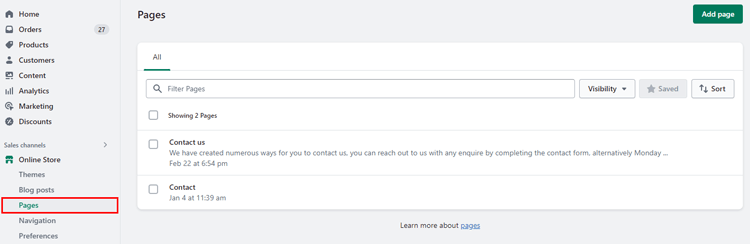
Go to Online Store → Pages.
You may view a list of all the web pages you’ve made for your online store under the “Pages” tab. Then, locate and click on the page title that you wish to change.

Find the page you want to update (for example, “About Us”, “Contact”, “Shipping Policy”, or a blog landing page) and click its title.
After choosing the webpage you want to modify you will be directed to the edit screen. You can modify the page’s settings and content from this point. Text, pictures, and other components can all be changed or added as desired.

Click save
Make sure you click the “Save” button at the bottom of the screen after making your changes. It will save your website updates.
Next, visit the page for your online store to verify that your changes were saved. You might need to reload the webpage in your browser to view the changes. If the modifications are not apparent, confirm that you pressed the “Save” button before attempting again.
Update content and layout
Inside the page editor you can:
- Edit text using the rich‑text toolbar (headings, bullets, links).
- Add or replace images, embed videos, or insert tables.
- Edit the search engine listing: page title, meta description, and URL handle (keep it short and descriptive).
For design‑related changes that affect the whole layout (header, footer, sections), open Online Store → Themes → Customize and adjust the page template in the Shopify theme editor.

Method 2: How to Edit Pages in Shopify on iPhone
Editing pages in Shopify on your iPhone may seem daunting, but it’s actually a breeze! Here’s a guide on how to edit pages in Shopify on iPhone-
Step 1: Open the Shopify app and choose the Store you want to manage.
Open the Shopify app on your iPhone and select “Store” from the drop-down menu to modify a Shopify page.
Step 2: Scroll to Sales channels and tap Online Store → Pages.
Scroll down once you’ve reached the Store section to find the “Sales channels” section. Then, click “Online Store” to continue.
Step 3: Tap the page title you want to edit.
By tapping on its title in the Pages list, choose the page you want to update.
Step 4: Update the text, images, and settings using the built‑in editor tools.
You can make adjustments to a page’s settings and content once you have gained access to it. Using the available editing tools, you can change the text, photos, layout, and other page elements.
Step 5: Tap Save in the top‑right corner.
Don’t forget to save your changes after you’ve finished by clicking the “Save” button in the top right corner of the page.
Step 6: Refresh to confirm the update.
View the page in your mobile browser and refresh to confirm the update.
These methods will make it simple for you to use your iPhone to modify Shopify pages. However, remember that the specific procedures may change depending on the Shopify app version you are using.
Top Recommended Blog for You
👉 How to Add an About Us Page on Shopify: The Essential Guide
👉 How to Add a Size Chart on Shopify Store: Tips and Tricks
👉 How to Add a Pricing Table to Your Shopify Store
👉 How to Export Images from Shopify: A Step-By-Step Guide
👉 How to Create a Shopify Coming Soon Page: The Ultimate Guide
Method – 3: How to Edit Pages in Shopify on Android
Use your Android mobile to edit a Shopify page by following these easy steps:
Step 1: Click on Shopify Store
Open the Shopify app and tap Store on the bottom navigation.
Step 2: Under Sales channels, tap Online Store, then Pages.
Click on the “Online Store” option in the Sales Channels section of your Shopify dashboard once you’ve logged in.
Step 3: Choose your pages.
Choose the “Pages” option under the Online Store menu.
Step 4: Select the Editing Page to make changes
Edit the content: text, layout, images, video, or embedded sections.
Step 5: Save your changes
Tap Save, then view the page in your browser and refresh to see the latest version.
These easy methods can let you quickly edit a Shopify page.

Tips and Tricks for Effective Page Editing
When you know how to Edit Pages in Shopify, the next step is learning how to edit them well so they convert, look good, and stay easy to maintain.
Keep your pages up to date
- Review key pages (home, About, Contact, FAQs, policies, top blog posts) on a regular schedule.
- Update offers, prices, images, and examples when your products or services change.
- Add “Last updated” dates to long guides so visitors know the information is current.
Use clear structure and headings
- Use one main H1 that matches the page topic, for example: “How to Edit Pages in Shopify”.
- Break content into short sections with H2/H3 headings like “How to edit pages in Shopify on iPhone” or “Tips and tricks for effective page editing”.
- Keep paragraphs short and use bullet points for steps or lists to make scanning easier.
Make pages mobile‑friendly
- Preview your pages on different screen sizes using the theme editor’s device preview.
- Avoid very wide images or long lines of text that are hard to read on phones.
- Place important information (like key benefits or instructions) near the top so mobile users see it without scrolling far.
Reuse templates and sections
- Use consistent page templates (for About, Contact, FAQs, etc.), so visitors know what to expect.
- Save reusable sections (for example, testimonials, feature lists, or promo banners) and add them to multiple pages instead of rebuilding them each time.
- Keep global elements, header, footer, and navigation inside the theme editor rather than editing them separately on each page.
Check readability and tone
- Read your page out loud or use a readability tool to catch awkward phrasing.
- Use simple language, active voice, and direct instructions, especially in how‑to content.
- Add call‑to‑action buttons or links (for example, “Contact us”, “View products”, “Get started”) so visitors know what to do next.
Use FAQs for common questions
When many pages share the same questions, create a central FAQ page and link to it, then keep the answers synchronized.
Add a short FAQ block at the end of important pages to handle the questions customers ask most.
Keep each answer concise and focused on one question.
Frequently Asked Questions
How do I edit pages in Shopify?
You can edit pages in Shopify by logging in to your Shopify admin panel, navigating to the “Online Store” section, and selecting “Pages”. From here, you can select the page you want to edit and make any desired changes.
Can I edit my Shopify pages without coding?
Yes, Shopify’s page editor and theme editor let you change text, images, sections, and layout using a visual interface, so you don’t need HTML, CSS, or Liquid unless you want advanced customizations.
How do I edit the design of a Shopify page template?
Go to Online Store → Themes → Customize, choose the page template (for example “page.default” or “page.contact”), and adjust sections, blocks, fonts, and colors, then click Save.
Why are my Shopify page changes not showing in Google?
Google needs time to crawl and index your updated page, so make sure the URL is allowed for indexing, appears in your XML sitemap, loads correctly on mobile, and is linked internally; then use Google Search Console’s Request indexing for faster recrawl.
How can I make my Shopify pages more SEO‑ and AI‑friendly?
Use descriptive titles and headings, answer the main question near the top, add FAQs, include internal links, optimize images with alt text, and implement JSON‑LD schema for Article, HowTo, and FAQ to help Google and AI systems understand your content.
What is the difference between editing a page and editing a template?
Editing a page changes only that one page’s content, while editing a template in the theme editor changes the layout for every page that uses that template.
Can I customize the design of individual pages?
Yes, you can assign different templates to different pages, and some themes let you add unique sections or blocks on a per‑page basis using the theme editor.
Get Exclusive Shopify Services from ShopiBuffet
🚀 Ready to skyrocket your Shopify store to success?
🚀 Unlock the secrets to success and boost your sales 📈 with ShopiBuffet’s expert services. Don’t miss out, get started now!
Looking to build a successful online retail business? Look no further than ShopiBuffet. The premium Shopify services can help entrepreneurs effortlessly achieve their goals, thanks to a team of experienced professionals who specialize in configuring Shopify store themes, managing product configurations, and streamlining navigation and collections.
Plus, with dedicated experts to help set up sales channels, ShopiBuffet makes it easy to create a seamless and efficient online store ready for success. Don’t let your eCommerce dreams fall by the wayside – trust in ShopiBuffet to help make them a reality.
What Services They Offer:
- Theme Installation & Demo Setup
- Product & Collection Setup
- Navigation Setup
- Shopify SEO Services
- Shopify migration service
- Shopify stores regular updates and maintenance services
Conclusion
Concerned about how to edit pages in Shopify? Don’t worry. With just a few clicks and some helpful tips, you can make changes to your website in no time. Whether you’re updating product descriptions or changing the layout of your homepage, Shopify’s user-friendly interface makes it easy for anyone to navigate. Plus, with the ability to preview your changes before publishing them, you can ensure your website looks exactly how you want it to.