


Quick Answer: How to Add Video on Shopify Product Page
To add video on a Shopify product page, go to Shopify Admin → Products → choose your product → use the Media section to upload an MP4 or paste a video URL, or embed a YouTube/Vimeo iframe in the description HTML, or add a Video section from the Theme Editor. For most Shopify 2.0 themes, using the product Media section is the fastest, most reliable way to add video on Shopify product pages.
If you want your store to stand out, learning how to add video on Shopify product page is one of the most impactful upgrades you can make.
Product videos increase engagement, build trust, and can significantly boost conversions, while also helping your product pages rank better in Google and AI-powered search results.
This guide shows you step‑by‑step how to add video on Shopify product pages using three methods, then walks through video SEO, schema markup, and performance best practices.

Bring your ideas to life for $1/month
The future of business is yours to shape. Sign up for a free trial and enjoy 3 months of Shopify for $1/month on select plans.
Why Add Video to a Shopify Product Page?
Product videos do more than look nice, they directly support sales and SEO:
- AI search visibility: Clear, structured content with video context is more likely to appear in Google AI Overviews and other AI answers.
- Higher conversions: Shoppers can see the product in action, which reduces hesitation and returns.
- Better SEO: Google favors rich media and video content, so adding video on Shopify product pages can improve visibility.
- More trust: Tutorial and testimonial videos position your brand as transparent and credible.
- Improved engagement signals: Video increases time on page and reduces pogo‑sticking, both positive ranking signals.

What Types of Videos Can You Add on Shopify Product Pages?
You can add several types of videos when optimizing how to add video on Shopify product page:
- Product demo and feature walkthrough videos
- Unboxing and “first impression” videos
- How-to/tutorial videos
- Customer testimonial or review videos
- Brand story or lifestyle videos
- 360° product views and close‑up detail shots
- UGC (user‑generated content) clips, particularly for social proof
Recommended formats and limits: Shopify supports MP4 (best), MOV, and AVI; for direct uploads, stay under roughly 1 GB per file and keep product videos under about 2 minutes for faster loading
How to Add Video on Shopify Product Page: Methods
There are several methods to add videos to your Shopify product pages. Here are two commonly used methods:
Method-1: Upload Video in the Shopify Product Media Section
To add videos to your Shopify product gallery without using YouTube or Vimeo, follow these steps:
Step 1: Log in to your Shopify Admin and go to the Products section.
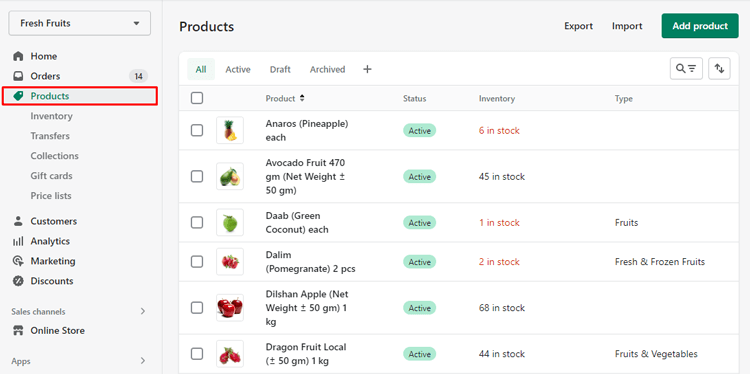
Step 2: Locate the specific product you want to add product videos to, then click it to view its details.

Step 3: Scroll down to the Media section within the product’s details page. You have multiple options for adding a video:
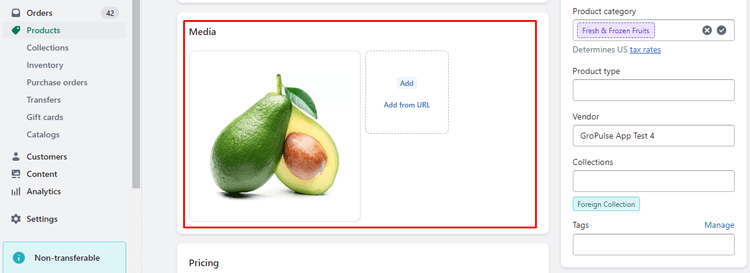
- Upload: Click on the “Add” button and select the video file from your computer to upload.
- Drag and Drop: Simply drag and drop the video file directly into the Media section.
- Add from URL: If your video is hosted on another platform or service, click on “Add from URL” and enter the video’s URL from the respective platform (not limited to YouTube or Vimeo).
Step 4: After adding the video, ensure you click the “Save” button to save the changes you made to the product.
Recommended Blog for you
👉 How to Add Drop-Down Menu in Shopify: A Step-by-Step Guide
👉 How to Backup Your Shopify Theme: Quick and Easy Ways
👉 How to Rearrange Products in Shopify: A Practical Guide
👉 How to Add Shipping Policy on Shopify: A Step-by-Step Guide
Method-2: Embed a YouTube or Vimeo Video in the Product Description
If you prefer hosting on YouTube or Vimeo, or you want the video inside the description section, use the embed method. This is a very common way people search for how to add video on Shopify product page from YouTube.
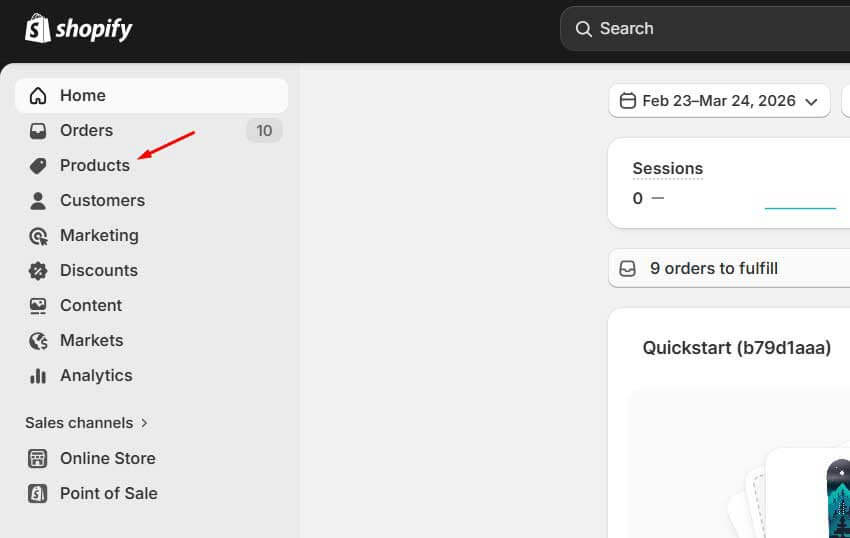
Step-1: In Shopify Admin → Products,
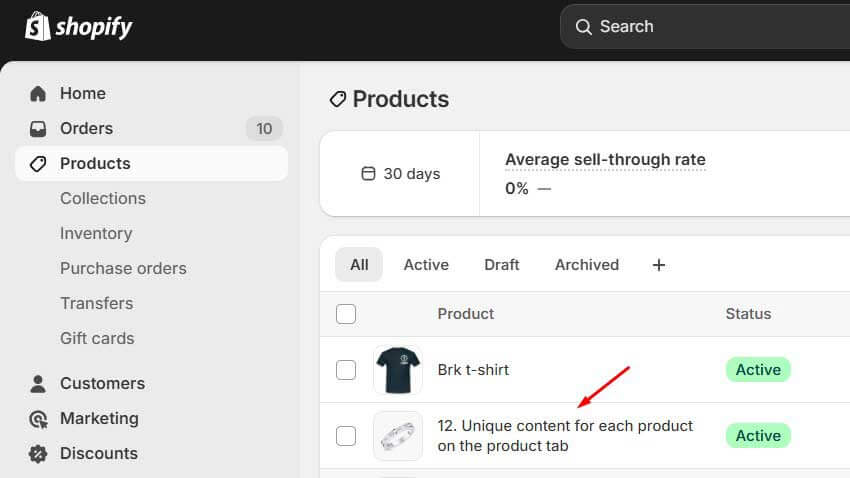
Step 2: Click on the product you want to add a video to.
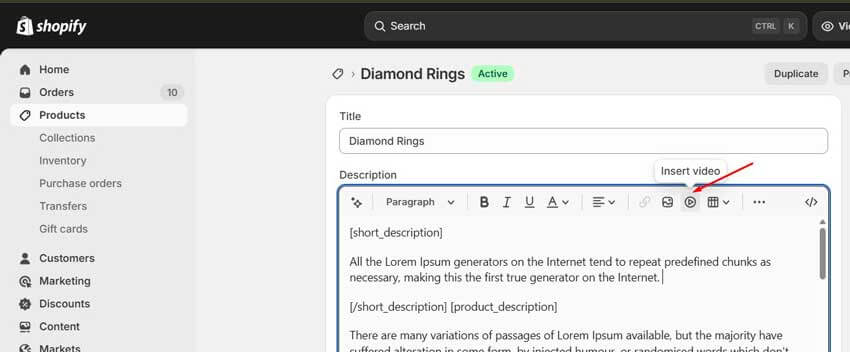
Step-3:In the Description field, click the Insert video icon to open the “Insert video” pop-up.
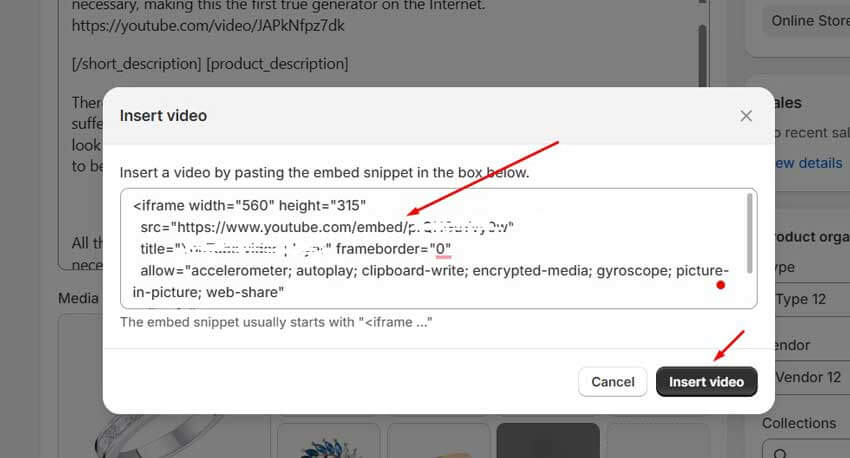
Step-4: Paste the iframe embed snippet from YouTube/Vimeo into the box.
<iframe width="560" height="315"
  src="https://www.youtube.com/embed/pppppp"
  title="YouTube video player" frameborder="0"
  allow="accelerometer; autoplay; clipboard-write; encrypted-media; gyroscope; picture-in-picture; web-share"
  allowfullscreen>
</iframe>
Step-5: Upload your video to YouTube or Vimeo and copy the embed code (it usually starts with <iframe …>).
Step 5: Click Insert video, then click Save to update the product page.
Shopify will automatically add the iframe HTML into your description, so you don’t need to manually switch to HTML mode unless you want to further customize the code (for example, adding loading="lazy" or changing height/width).
Video Presentation: How to Add Video on Shopify Product Page
How to Optimize Shopify Product Videos for SEO
Simply knowing how to add video on Shopify product page is not enough—you also need to optimize for search and performance.
1. Add VideoObject Schema Markup
Use VideoObject schema so Google clearly understands your video content and can show video rich results.
Example JSON‑LD (adapt and insert via theme code or SEO app):
json{
  "@context": "https://schema.org",
  "@type": "VideoObject",
  "name": "How to Use [Product Name] – Demo",
  "description": "Watch this product demo to see [Product Name] in action.",
  "thumbnailUrl": "https://yourstore.com/path/to/thumbnail.jpg",
  "uploadDate": "2025-01-01",
  "duration": "PT2M30S",
  "contentUrl": "https://www.youtube.com/watch?v=VIDEO_ID",
  "embedUrl": "https://www.youtube.com/embed/VIDEO_ID"
}
Apps such as GP JSON‑LD Schema & AI SEO can automate this for Shopify stores.
2. Protect Core Web Vitals and Page Speed
Video can hurt speed if you’re not careful. Best practices:
- Use
loading="lazy"on iframe embeds. - Avoid autoplay with sound; it hurts UX and SEO.
- Compress video before upload and keep resolutions reasonable (1080p is enough).
- Prefer YouTube/Vimeo hosting for long or multiple videos.
- Use a clickable thumbnail image that loads the player on demand for best performance.
Does Adding Video on Shopify Product Page Slow It Down?
Done poorly, yes. Done correctly, no.
If you:
- Host large files on YouTube/Vimeo,
- Use lazy‑loading iframes, and
- Avoid heavy autoplay background videos,
then adding video on Shopify product pages should not significantly harm load time and can even improve engagement metrics that help SEO
Best Practices for Shopify Product Videos in 2026
Here are some best practices for using videos on Shopify product pages:

Can You Add Multiple Videos to One Shopify Product Page?
Yes. You can upload multiple videos into the product Media gallery and also embed more than one YouTube/Vimeo iframe in the description. For UX and speed, most stores should keep it to 2–3 key videos per product page.
How to Add Video on Shopify Product Page Without Hurting SEO
To safely add video on Shopify product page without harming SEO:
- Use YouTube/Vimeo hosting for longer videos.
- Add lazy‑loading and avoid autoplay.
- Keep videos short and focused on conversion.
- Implement VideoObject schema markup.
- Use descriptive file names, titles, and alt text around the video.
Frequently Asked Questions
How do I add a video to a Shopify product page in the simplest way?
Open Shopify Admin → Products → select the product → in the Media section, click Add and upload an MP4 video or paste a video URL, then Save. This is the simplest way to add a video to a Shopify product page for most modern themes.
How can I add a YouTube video to a Shopify product description?
Switch the description editor to HTML view, paste a responsive YouTube iframe block, replace VIDEO_ID with your own, then save and preview. This lets you add video on Shopify product page while offloading hosting to YouTube.
Can I autoplay video on a Shopify product page?
Yes, but it’s not recommended. Adding autoplay=1 in the iframe URL or using theme options can autoplay video, but this can hurt user experience, Core Web Vitals, and SEO if overused.
What Is the Best Video Format for Shopify Product Pages?
The best format when planning how to add video on Shopify product page is MP4 (H.264 codec). MP4 works consistently across browsers, has good compression, and is fully supported by Shopify and major video platforms.
🚀 Boost Your Online Store Sales with Mavon Shopify Theme!
Try Mavon for Free Today!
Get Exclusive Shopify Services from ShopiBuffet
Starting an online business can be challenging, but with ShopiBuffet’s exclusive Shopify services, it doesn’t have to be difficult. Their team of qualified experts can take care of everything, from designing a visually appealing theme to setting up your products and sales channels.
Plus, their customer service is always available to help with any questions or concerns you may have. Even if you’re a new business owner, you can easily set up a fully functioning eCommerce store and start selling online with their assistance.
Conclusion
When you understand how to add video on Shopify product page using the Media section, description embeds, and theme video sections, you unlock a powerful way to increase trust, engagement, and conversions.
Combine these methods with solid video SEO, schema markup, and performance best practices, and your Shopify product pages are far more likely to rank in Google, appear in AI search overviews, and convert visitors into buyers.